I am wondering whether it is possible to remove “Simple Book Publishing” from the html page titles in Pressbooks? At the moment all browser tabs show “Name of book – Simple Book Publishing.”
Thank you,
Rajiv
Hi Rajiv,
Great question. I had to do a bit of research on this one (you stumped me initially!). It appears that this value is created at the time of network/book creation, but can be manually edited/removed for already created books. For most of our EDU networks, we use the default value ‘Open Textbook’ for new books, but it appears that KPU has a different default value (I’m not sure why this is, but think perhaps it may be due to the network’s previous life as a self-hosted open source network or a consequence of using the BCcampus open textbook plugin?)
In WordPress parlance, the text you’re seeing here is called the ‘Blogdescription’ or ‘tagline’. Network managers can see/edit/remove this for individual books by visiting the network book list, clicking edit for an individual book, and then selecting the ‘settings’ tab from the resulting menu (be very careful about editing other information on this page unless you’re quite sure you know what you’re doing!). Here, the relevant field is called ‘blogdescription’:
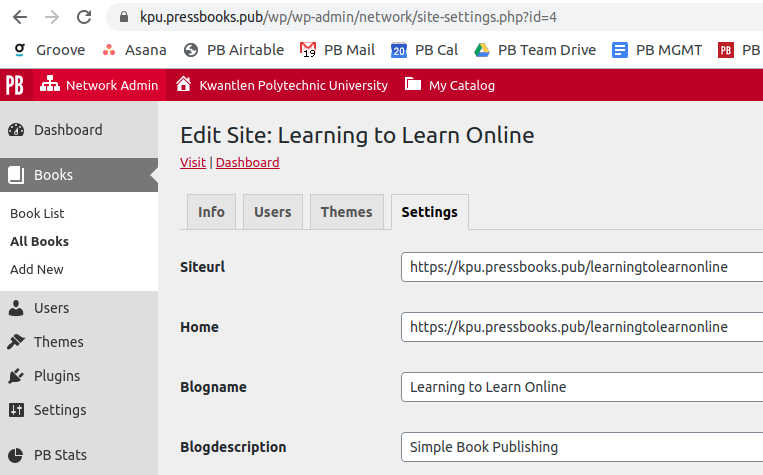
Removing or changing this value will remove or change what’s included as part of the html page titles and what displays in the browser bar.
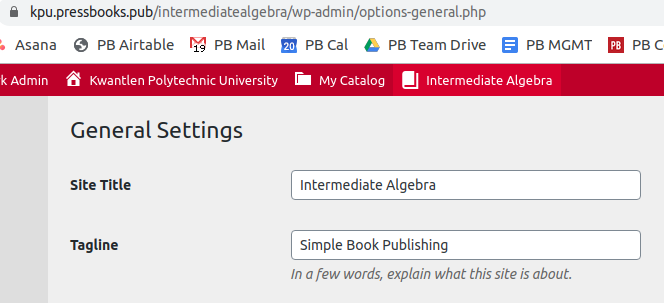
Book administrators can also change this themselves by visiting a ‘hidden’ admin settings page for each book: https://NETWORK.URL/BOOK/wp-admin/options-general.php (replacing network URL and bookname with the relevant values, (i.e. https://kpu.pressbooks.pub/intermediatealgebra/wp-admin/options-general.php). Once there, you’ll see a few options, one of which is ‘tagline’ – this is what’s displayed as part of the book title in the browser bar. As with before, we recommend that users are cautious about editing other information/settings on this page.
Hope that helps!
Thank you so much for your investigative work Steel, and for this clear explanation. I have now addressed this issue for all of the books in our catalogue.
Cheers and happy holidays,
Rajiv
Amazing. Glad it worked for you. Happy holidays to you and yours. Hope our paths cross in person in 2020!
Thanks for posting this question Rajiv and to Steel for the great walk-through. We’ve started seeing this on our site too so I’m glad to know how to change it!
Is there anyway to change the default value so that it’s not appearing that way on each new book?