Hello!
We have a storage cap on our instance of 6gb per book, and have recently had a user hit that cap – currently we’re only able to bump up the cap for all books within the instance rather than for specific books (so now the cap is 7.5 in our instance). This isn’t ideal because there is a full 100gb cap on the multisite – so ideally we would like to set the per-book storage cap to something small like 1-3gb and then manually bump people up as needed.
Also, since in this particular book, the vast majority of media files are images, it would be nice if there was a way to determine if a particular image isn’t actually being used within a book and to be able to sort those images in the media library by their file size so that they can be resized.
So I propose the following features –
(1) Allow storage capacities to be set per book
(2) Allow media in a book’s media library to be sorted by file size
(3) Display whether an image or other item in a book’s media gallery is actually in use.
Would these be helpful to other folks as well?
Those all sound like great ideas, @AndrewTurner! I wonder whether some of them might be possible with a Pressbooks-compatible WordPress media library plugin? I used to use Enhanced Media Library when we were self-hosting at UW-Madison (https://github.com/pressbooks/ideas/issues/110), for example.
Hi,
Coming back to this a few years later, were any of these features ever implemented?
Also, would like to know how we can verify our total storage available (like 100gb for Andrew) as a superadmin rather than a network manager? Not sure if our pressbooks instance is standalone or just a hosted one.
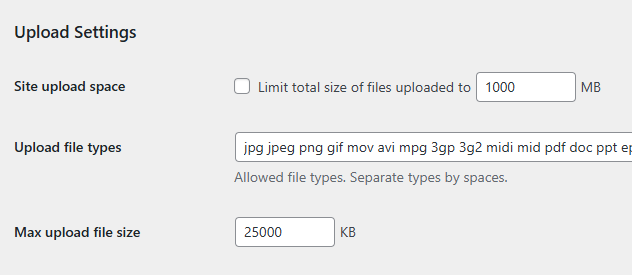
hi @Rahil_Kakkad we do not place any storage limits for enterprise Pressbooks networks, and have not for several years. Individual super admins/network managers can set storage limits for books on the network. The option is available in different locations depending on whether you’re a network manager on a hosted enterprise network or super admin on an self-hosted open source instance, but is generally under ‘Administer Network’ → Settings. For network managers:
For super admins:
The site upload space is the relevant setting.
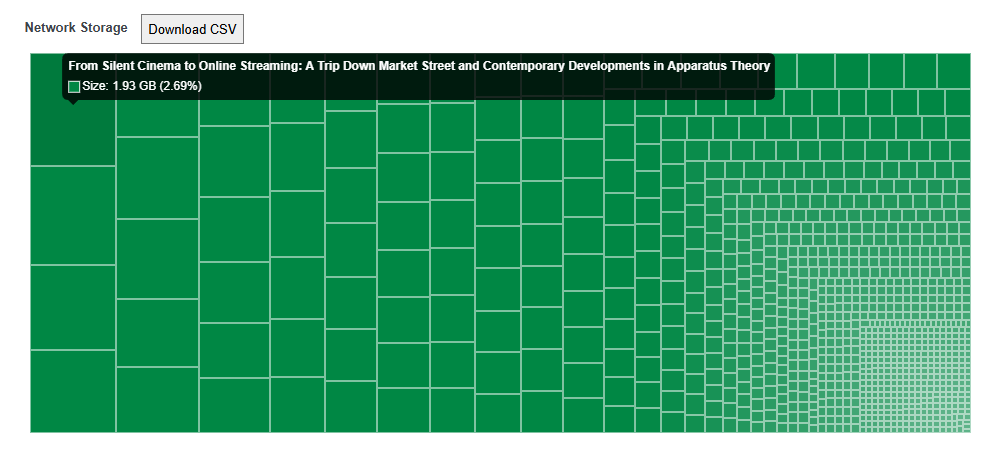
Network managers on enterprise networks also have a stats page that shows a treemap that visualizes storage used by each book on the network:
Hovering over a square gives more information about the book. Clicking a square takes you to the media library for a book.
We have not implemented feature ideas 2 or 3. They would require replacing how WordPress handles management of media files and we haven’t had the appetite for that to date.
Thanks for the quick response Steel. I will take a look into it